
-
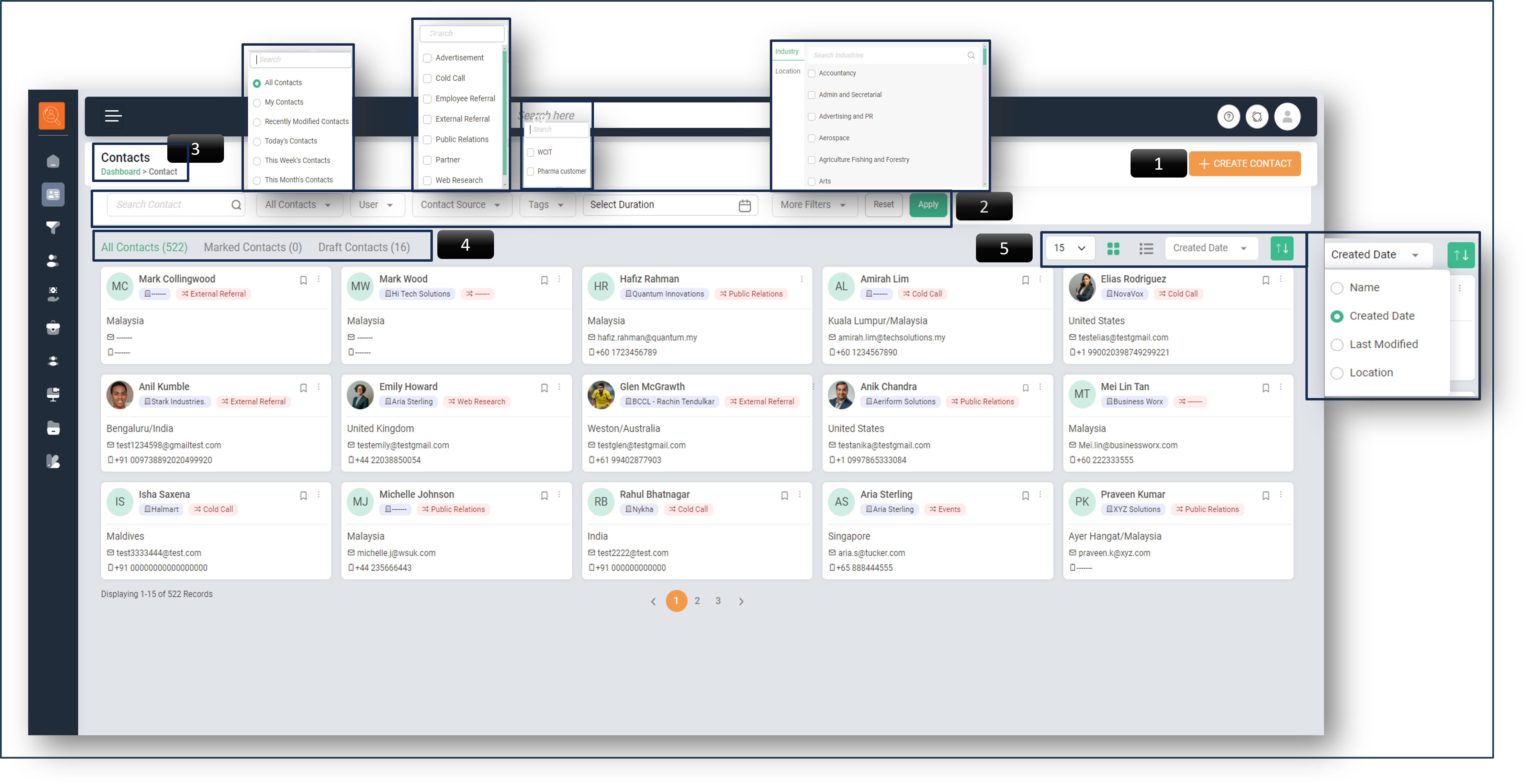
1 Create Contact - is for adding a new contact.
-
2 Filter/Search Bar - Allows you to refine page content based on parameters like Contact Type, Contact Source, Tags, Industry, Location, Users, and Date(Weekly, Monthly, Quarterly, Yearly and Custom Date). Use “Reset” for the default view and “Apply” to apply filters.
-
3 Navigation Icons - used for page navigation. The icon highlighted in green indicates the path of current page.
-
4 Contact Sub Tabs - are quick filters for viewing “Marked Contacts” and “Draft Contacts”.
-
5 View & Sort Options - allow you to customize the display, such as the number of contacts per page and the view format (list or card). You can also sort contacts by “Name”, “Created Date”, “Last Modified”, and “Location”.
How to Create Contact?
-
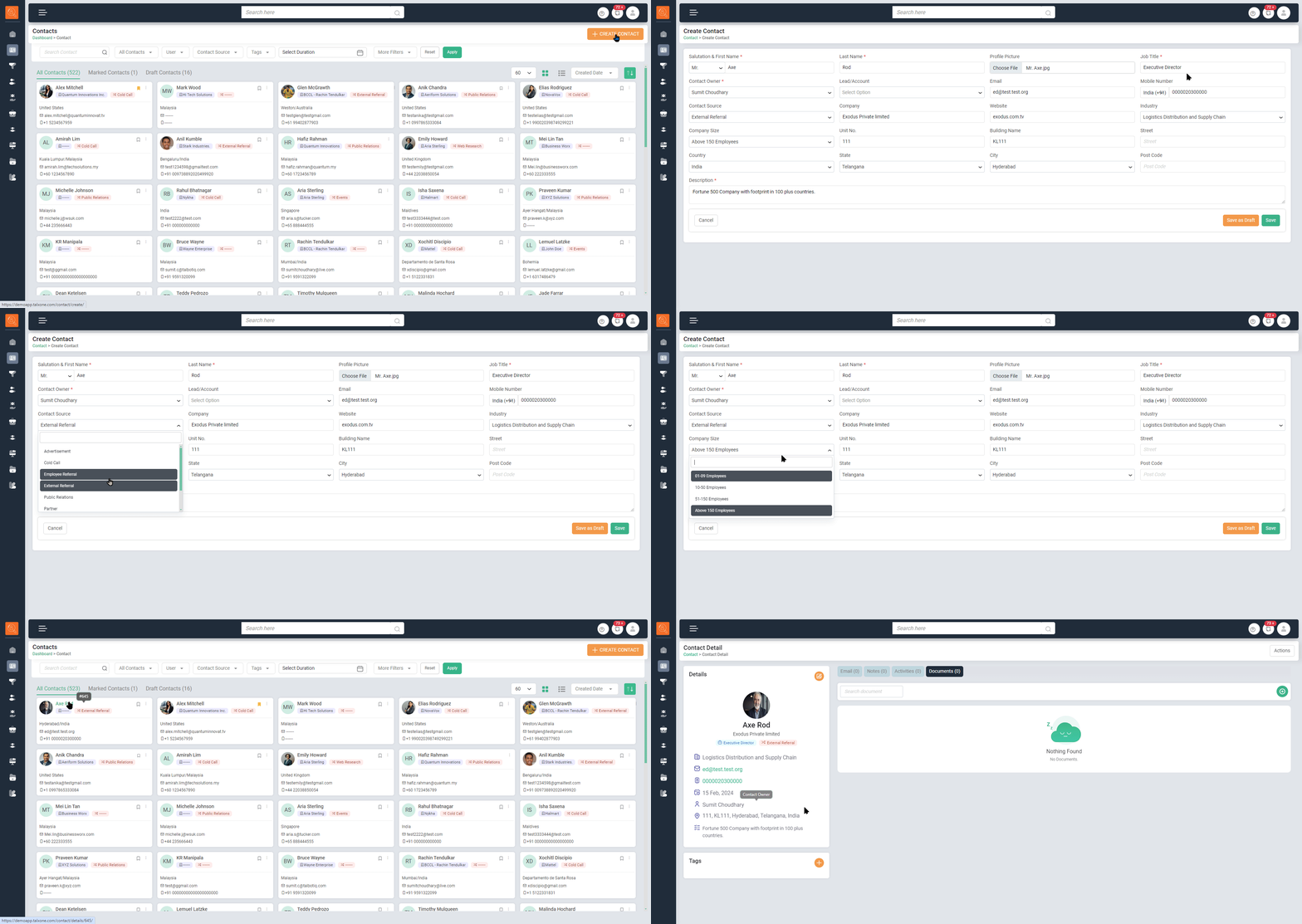
1 Upon selecting “Create Contact”, a new window will appear. Here, you’ll need to input various details about the contact, including “Salutation”, “Name”, “Add Profile Picture”, “Job Title”, “Job Owner”, “Lead/Account”, “Email”, “Mobile Number”, “Contact Source”, “Company”, “Address”, and “Description”.
*Lead/Account may be left empty if not applicable
-
2 After entering the details, click the “Save” button. The new contact will then be visible in the main “Contact” tab.
-
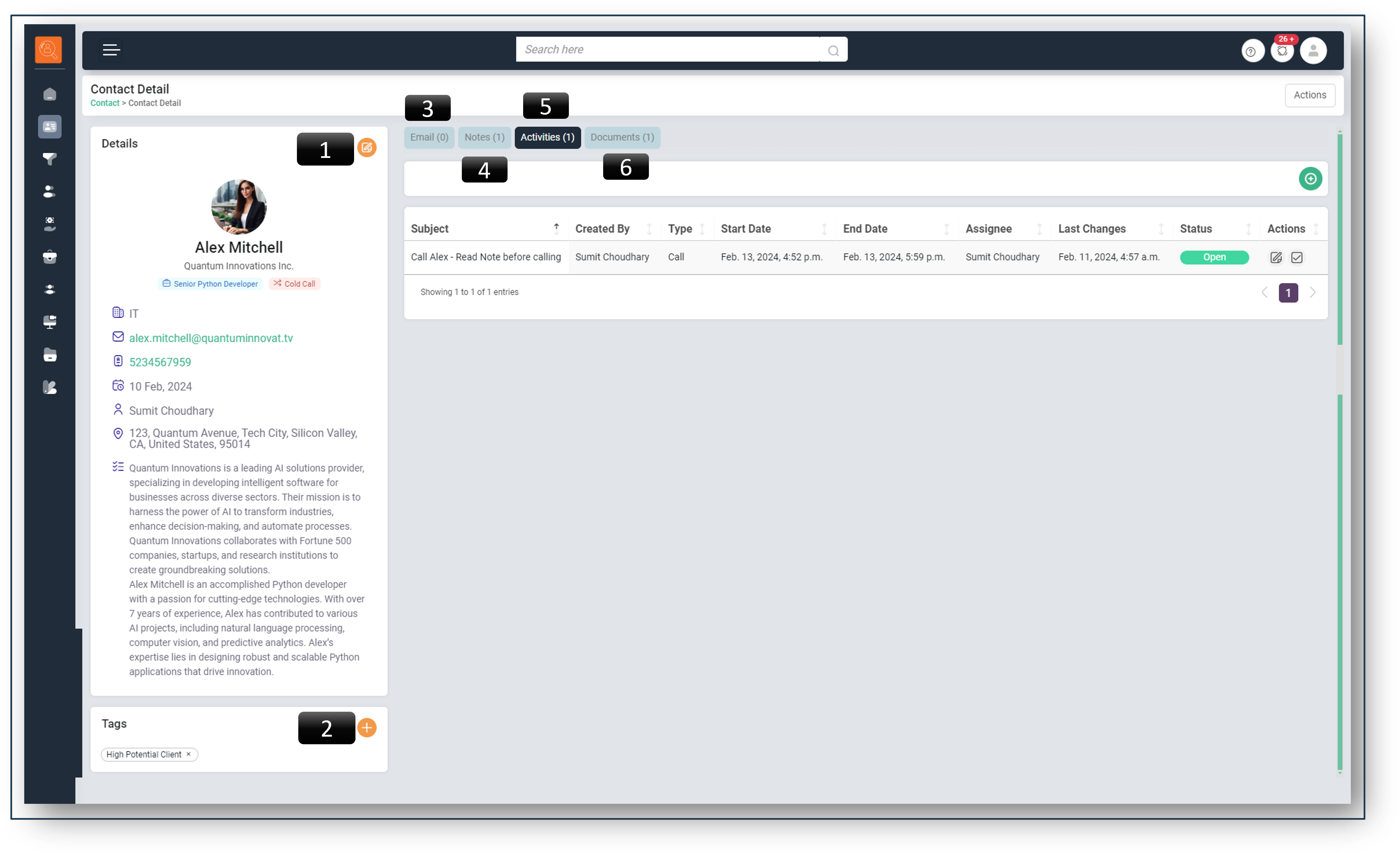
1 "Edit Details", This allows you to update the contact’s information as needed.
-
2 You can add “Tags” to your contacts, such as “High Potential Client/Account/Lead”. This makes it easier to search for specific groups of contacts.
-
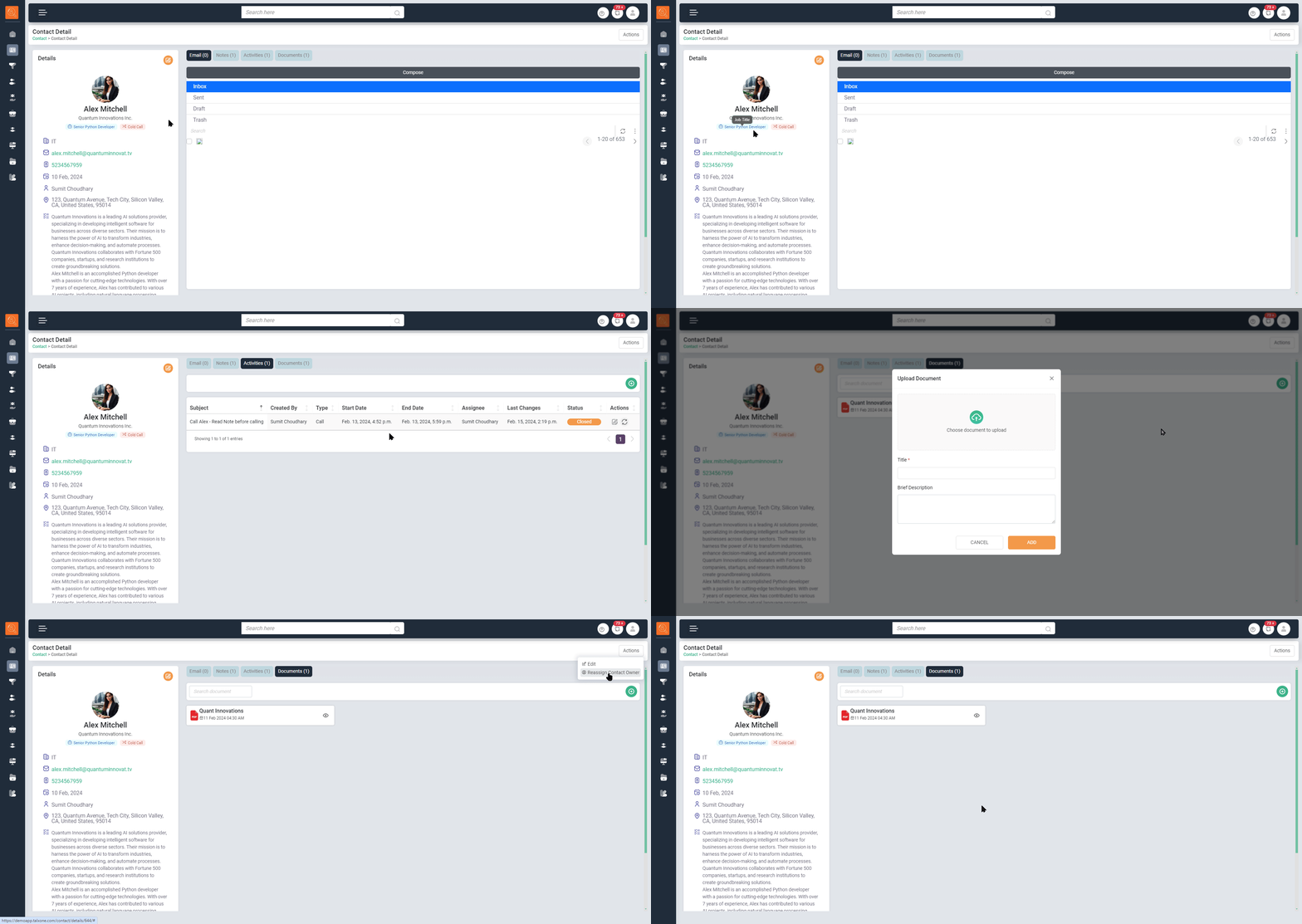
3 You can directly interact with contacts via “Email” from within TALXrecruit, eliminating the need to switch between multiple applications. This feature streamlines communication and enhances efficiency.
-
4 You can add “Notes” for each contact to record specific details like requirements or future prospects. This helps keep track of important information.
-
5 The “Create New Activity” feature allows you to set tasks like “Call” or “Meeting” with a contact. You can also assign these tasks to your team members directly from TALXrecruit.
-
6 The “Add Documents” feature allows you to upload files like visiting cards or company profiles directly to TALXrecruit. This helps keep all relevant information in one place.