
-
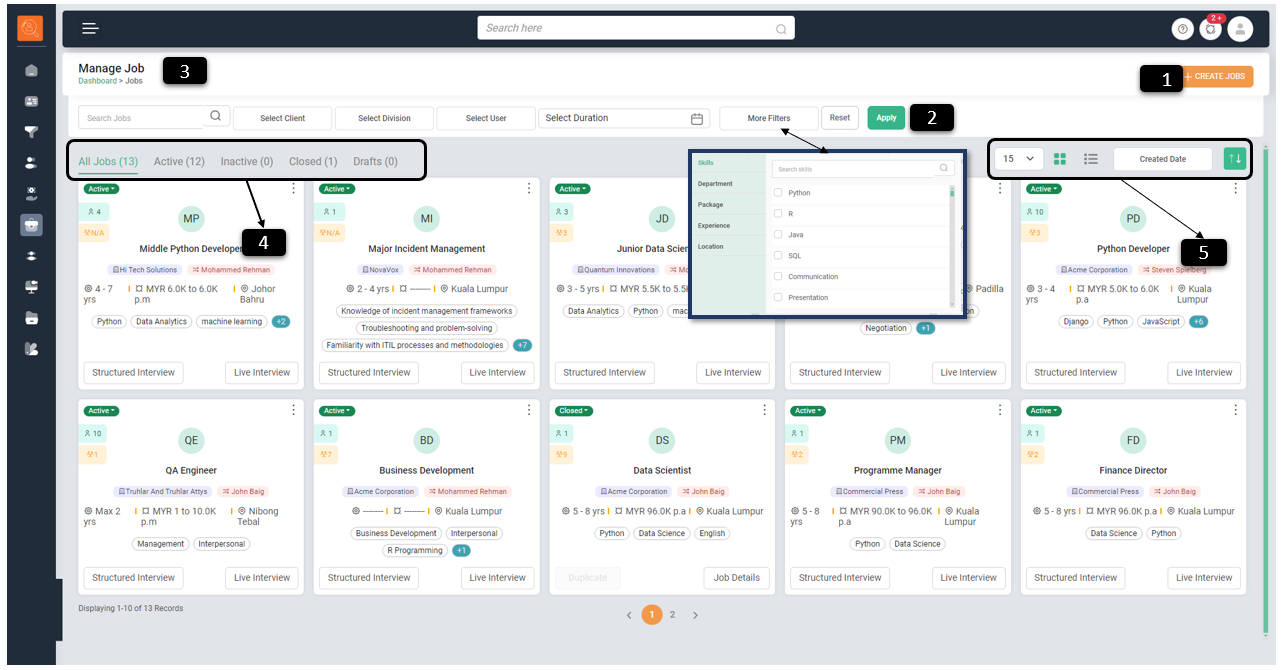
1 Create Job - Use this option to create a new Job
-
2 Filter/Search Bar - To filter page content as per various parameters e.g. Job Name, Client Name, Division, Users, Date (Weekly, Monthly, Quarterly, Yearly and Custom Date) and more filters such as Skills, Department, Package, Experience, Location. Click on "Reset" for default view and "Apply" to make filter applicable.
-
3 Navigation Icons - Use this to navigate to pages (it will take one to the page highlighted in green e.g. Dashboard).
-
4 Jobs Sub Tabs - These are quick view options to view Jobs as "Active Jobs", "Inactive Jobs", "Closed Jobs" and "Draft Jobs".
-
5 View & Sort Options - For ease of viewing such as number of Jobs to be displayed per page, whether in list or card form. One can also sort Opportunities basis "Name", "Created Date", "Last Modified" and "Location"
-
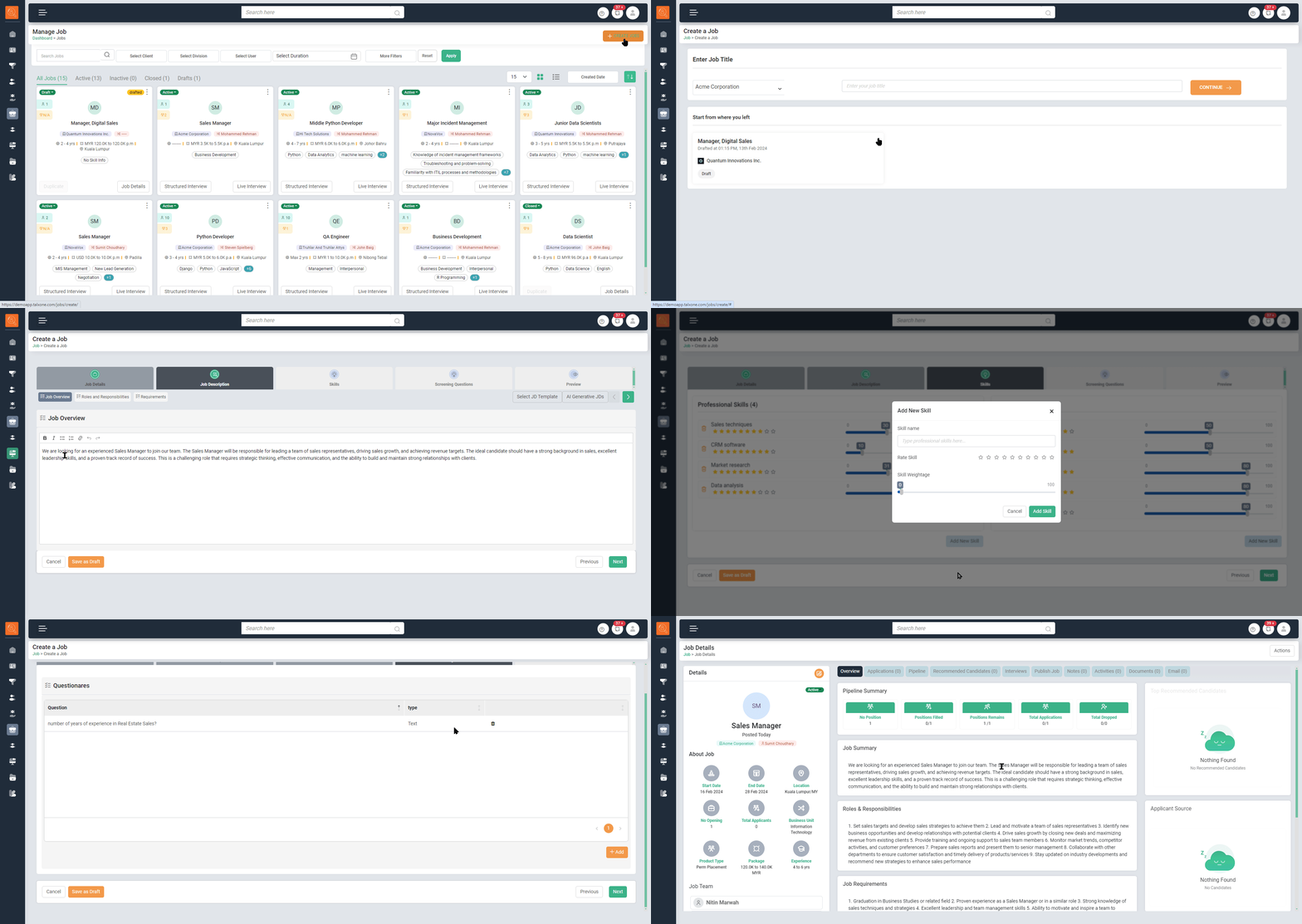
1 Go to "Job Tab" and click on "Create Job". A new window will open.
-
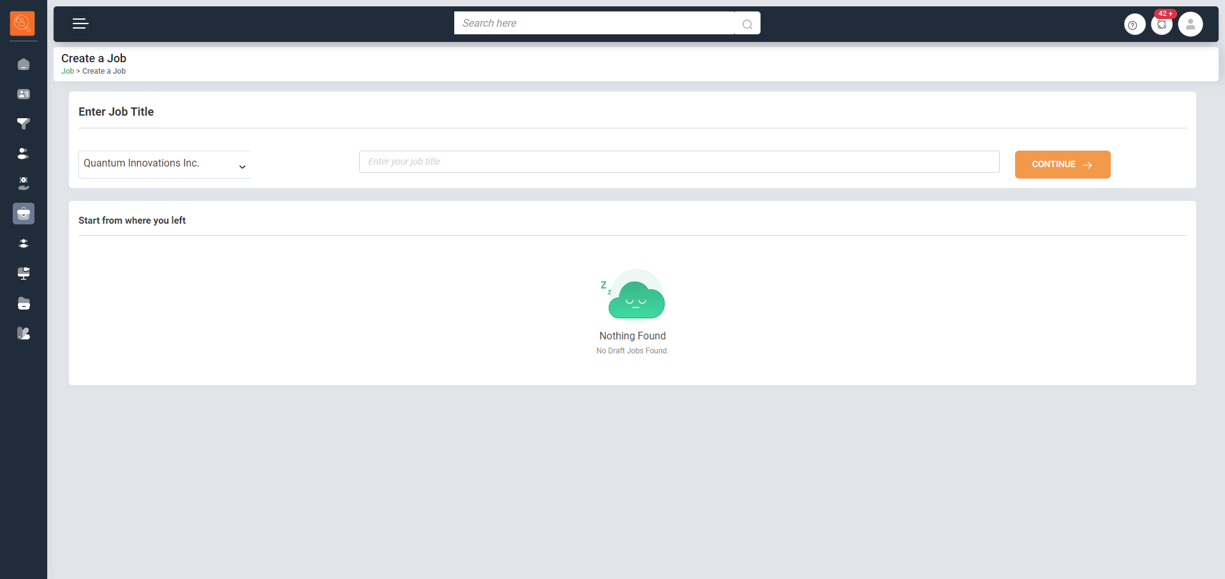
2 Select the Account with which the job is associated with, and add enter "Job Title". Click on "Countinue".
-
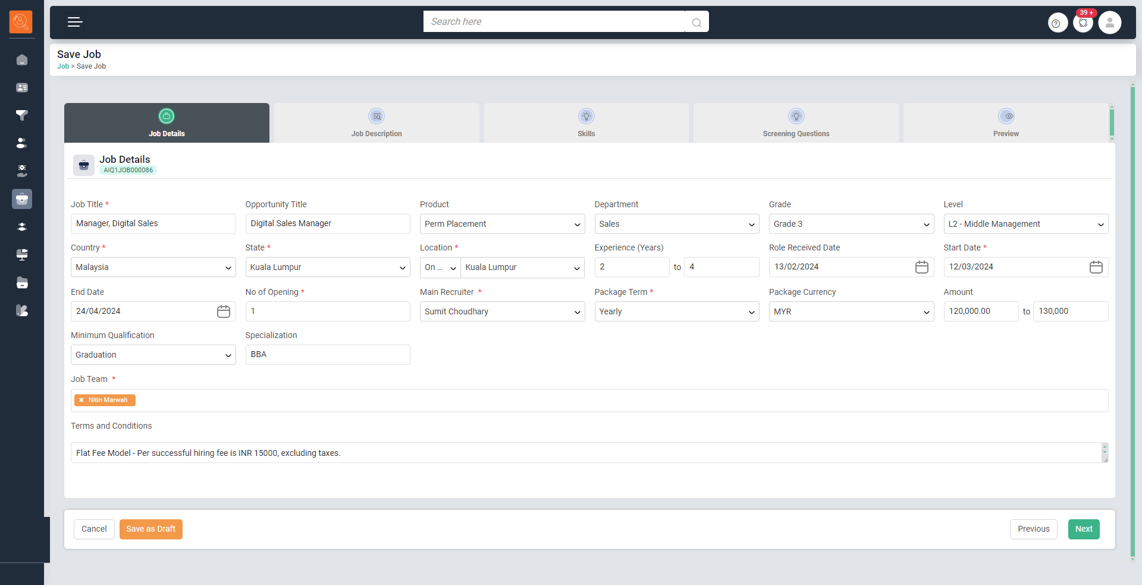
3 Job Details - Fill in details pertaining to the job such as Title, Department, Location, Experience Required, Education, Salary range.
-
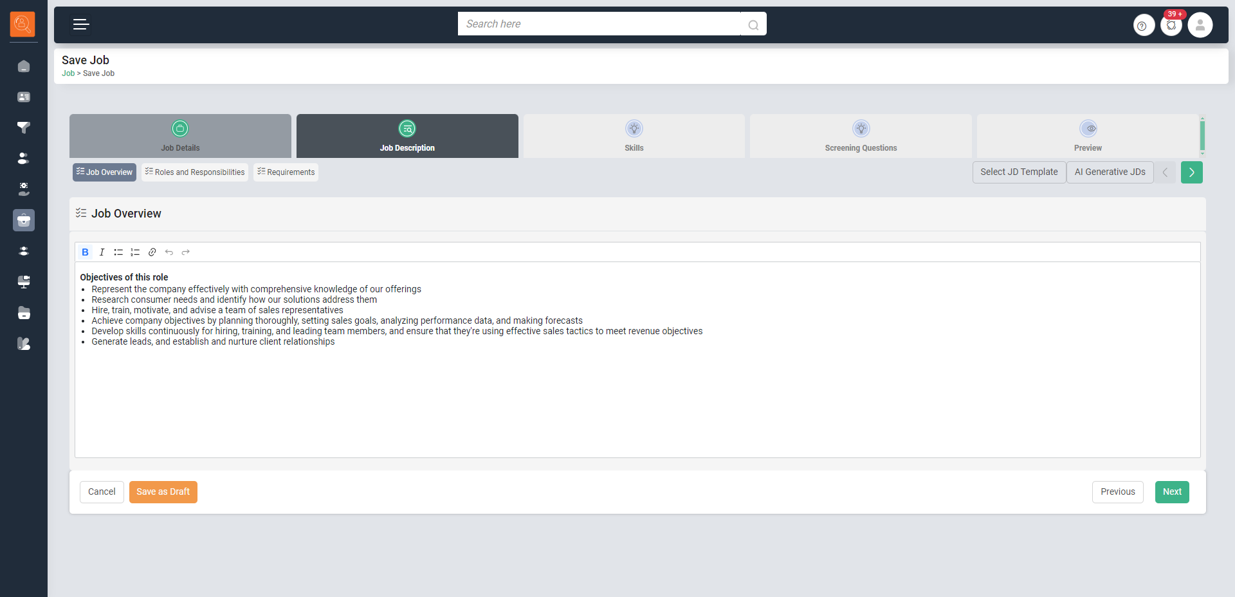
4 Click on "Next" and Add "Job description":
- Enter Job Description manually
- Enter Job description using a previous template saved
- Use AI Generative JDs which uses AI to create job description
-
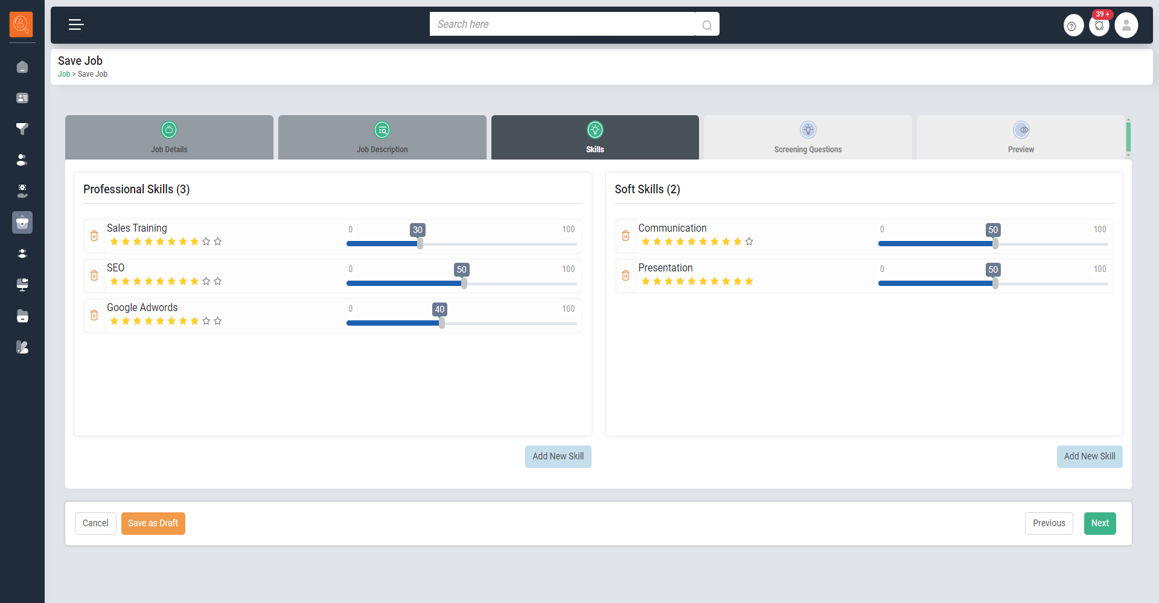
5 Add "Skills" which are required for the Job Role.
-
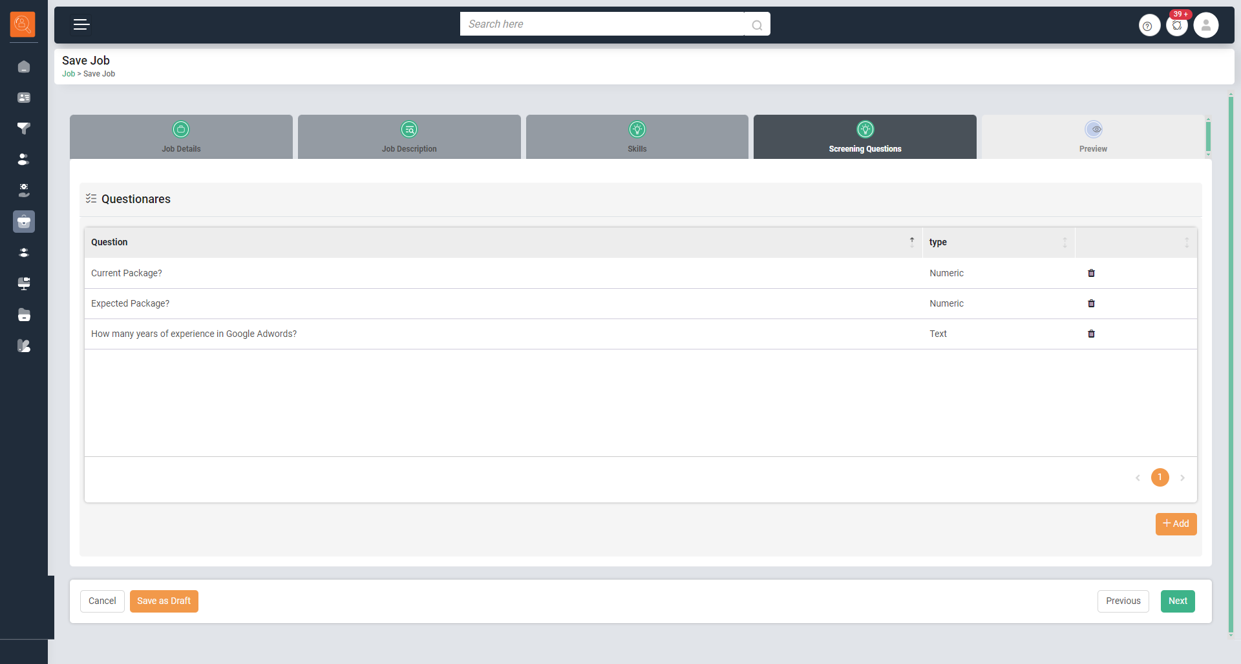
6 Add "Screening Questions" required for the Job Role.
-
7 Cick on Next and "Preview" the Job.
Click on "Post" button and the job will be posted.