
-
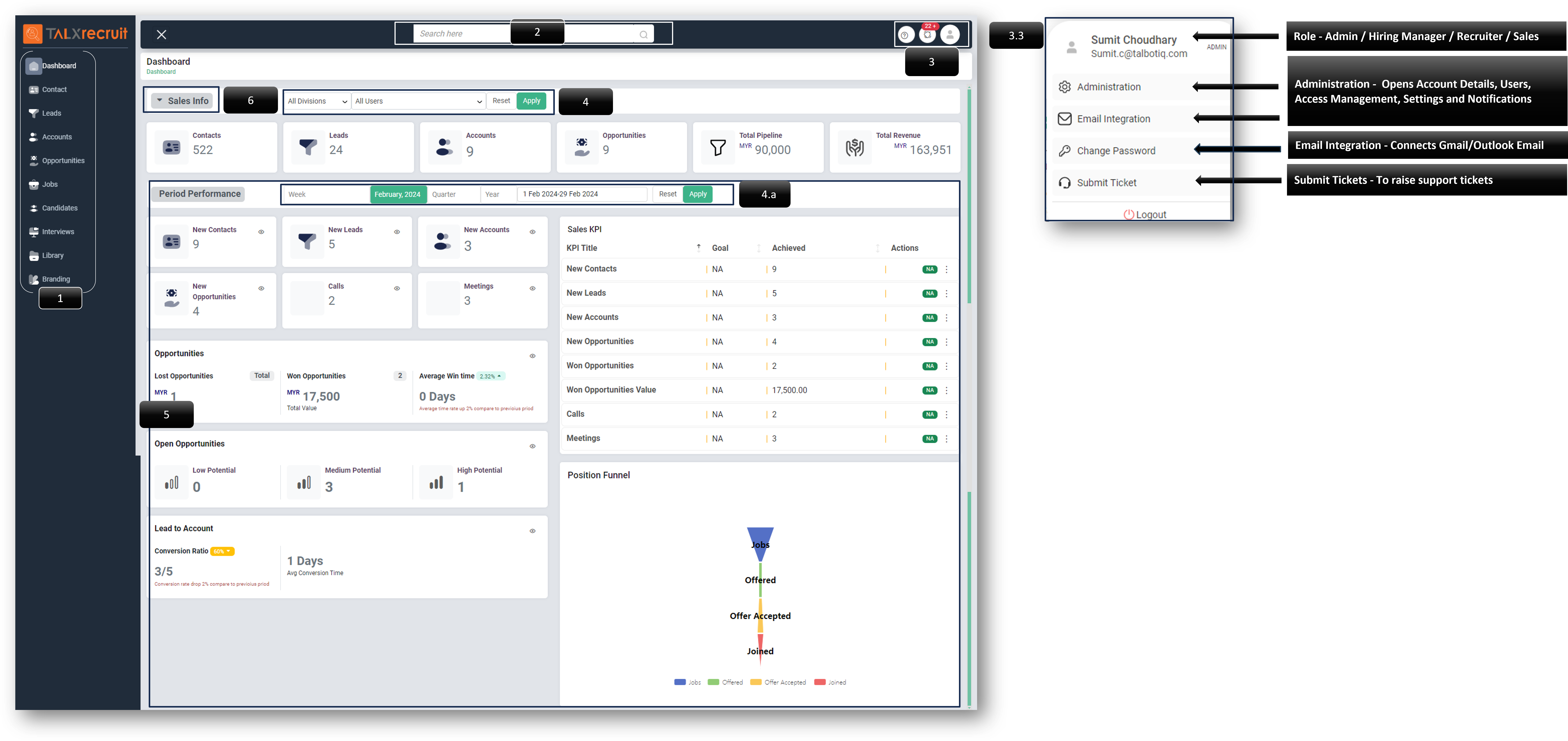
1 Sidebar Tabs are interactive elements. By clicking on tabs such as Contact, Leads, Accounts, Opportunities, Jobs, Candidates, Interviews, Library, and Branding, you can explore their respective features and functions. It’s a user-friendly way to navigate the system.
-
2 Search Bar is a universal feature found on the landing page and within the various tabs. It’s designed for easy access to search for items like “Candidate”, “Job”, “Contacts”, “Leads”, “Account”, and “Opportunity” that have been created in the system. You can use it at any time, from any screen, to quickly find what you’re looking for.
-
3 System Icons - The System Icons are three key features, listed from left to right:
- User Manual - This is the TALXrecruit guide, which includes information about its various tabs.
- Notifications - This is where all user-related notifications are displayed. It keeps the user informed about all activities based on their role. Clicking on a notification will take the user to the relevant page.
- Settings - Clicking on this icon reveals several options, including the Login Username, Role (e.g., ADMIN), Administration Settings, Email Integration, Change Password, Submit Ticket, and Logout options. These settings allow the user to manage their account and system preferences.
-
4 The Filter Bar is a tool that allows you to refine the content displayed on the page according to specific criteria such as Division and Users. By clicking “Reset”, you can revert to the default view. To apply your filters, simply click “Apply”.
- “Time-Based Filter”, lets you view data for set or custom time frames. You can choose from Weekly, Monthly, Quarterly, Yearly, or even set a Custom Date. Click “Reset” for the original view or “Apply” to use the filters.
-
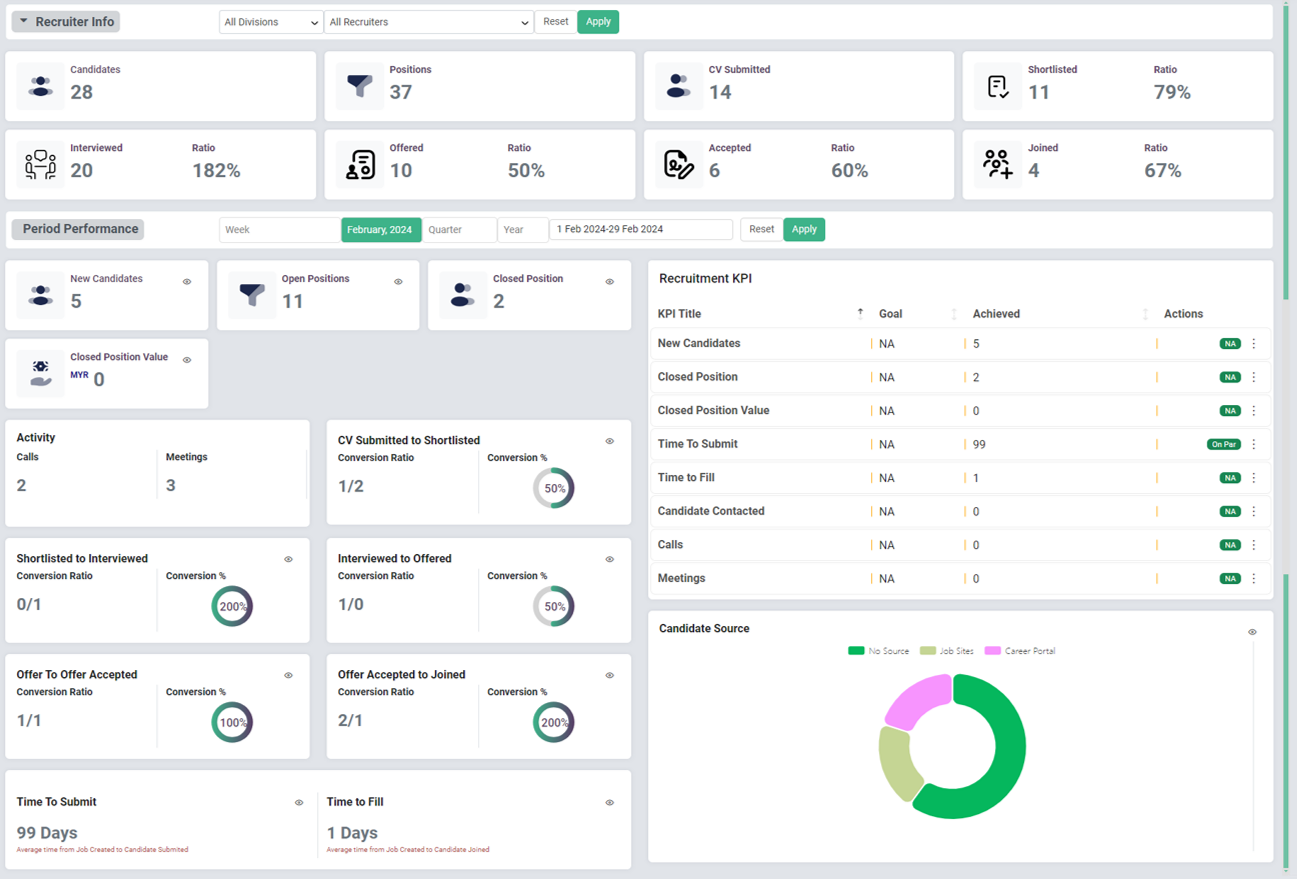
5 Dashboard Area, or “Performance Overview”, displays various Key Performance Indicators and related data based on the selected dashboard. There are two types of dashboards available, as detailed in point 6.
-
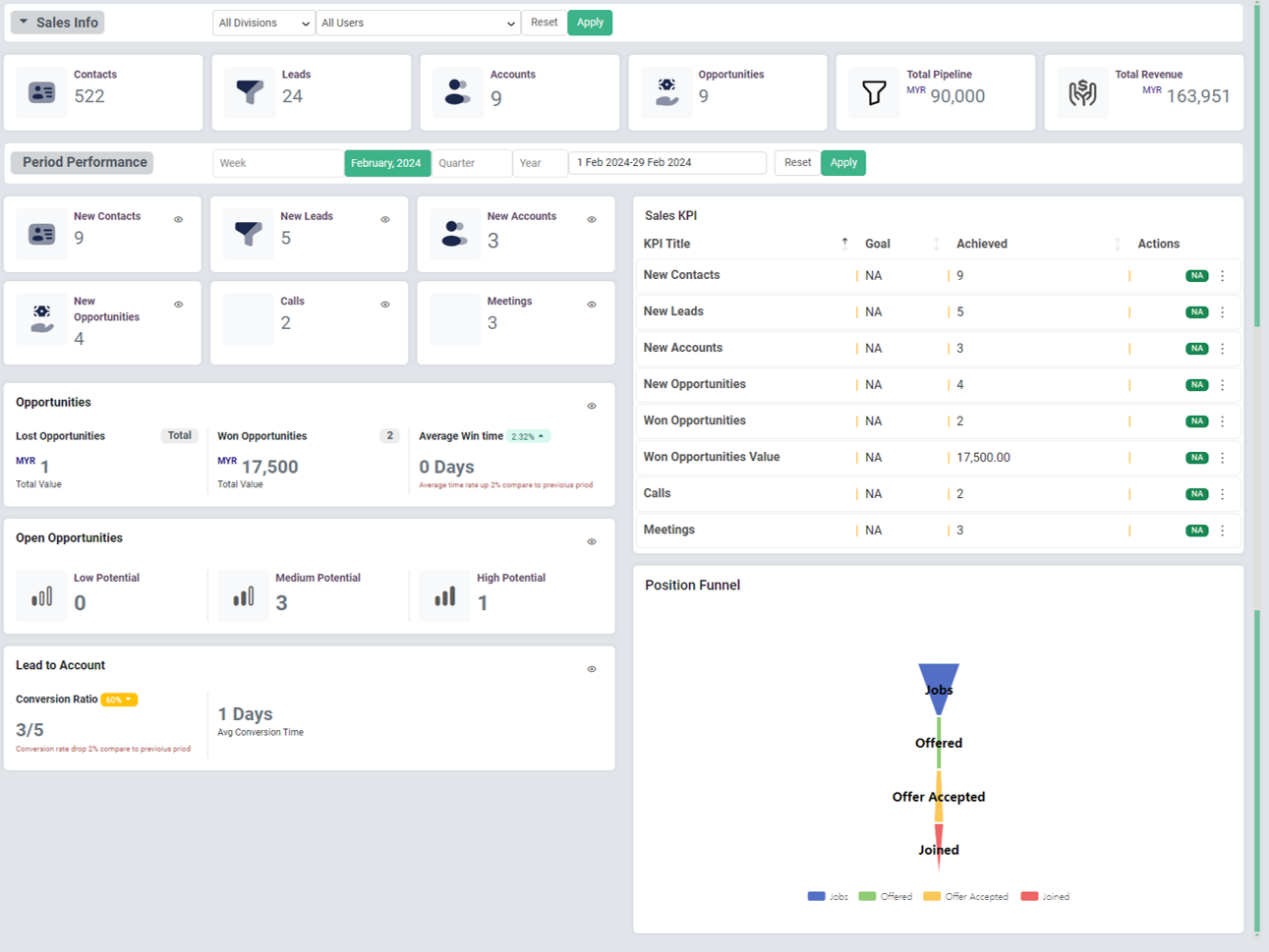
6 Dashboard View 1- Sales Info - Provides a quick overview of various Sales Key Performance Indicators. It gives an insight into the health of sales processes by comparing actual results with targets.
-
Dashboard View 2- Recruiter Info - Offers a snapshot of various recruitment-related Key Performance Indicators. It allows for a comparison of actual results versus targets, providing a quick overview of the recruitment process.