
-
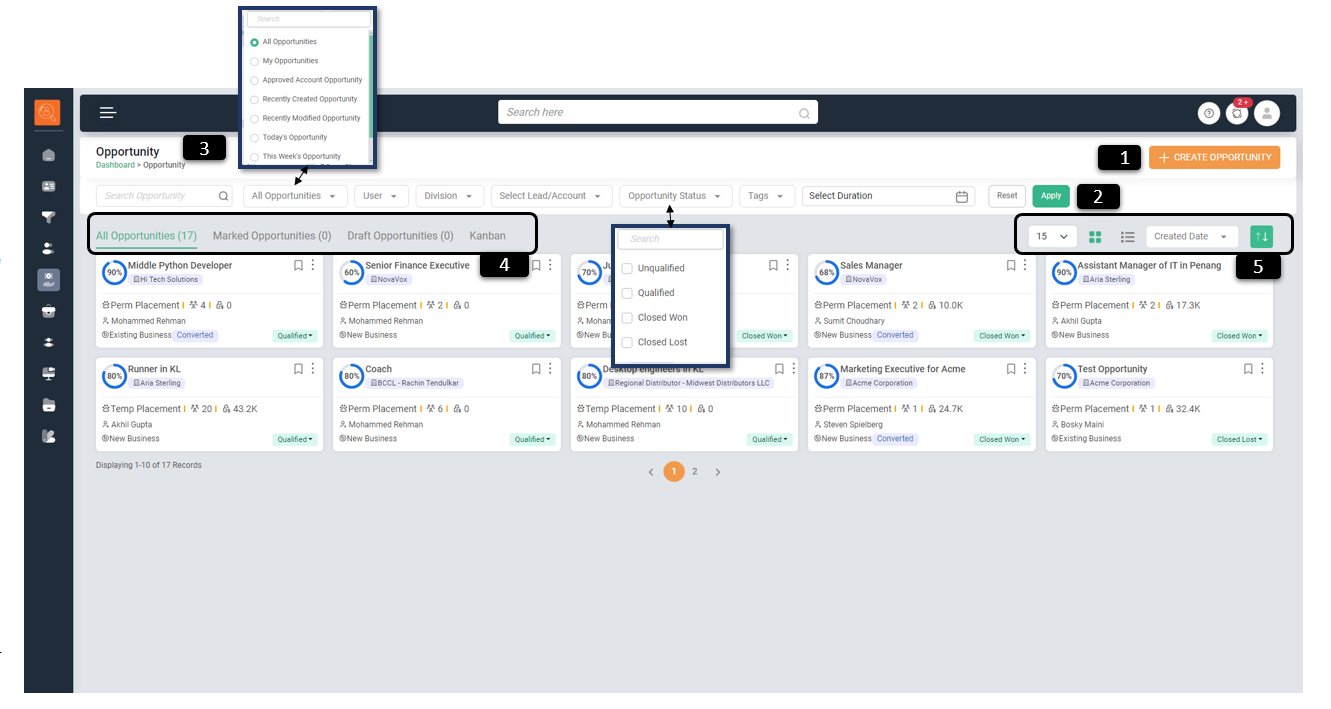
1 Create Opportunity - Use this option to create a new Opportunity
-
2 Filter/Search Bar - To filter page content as per various parameters eg. Opportunity Name, Opportunity Type, Division, Name of Account or Lead, Opportunity Status, Tags, Users, Date (Weekly, Monthly, Quaterly, Yearly and Custom Date). Click on "Reset" for default view and "Apply" to make filter applicable.
-
3 Navigation Icons - Use this to navigate to pages (it will take one to the page highlighted in green eg. Dashboard).
-
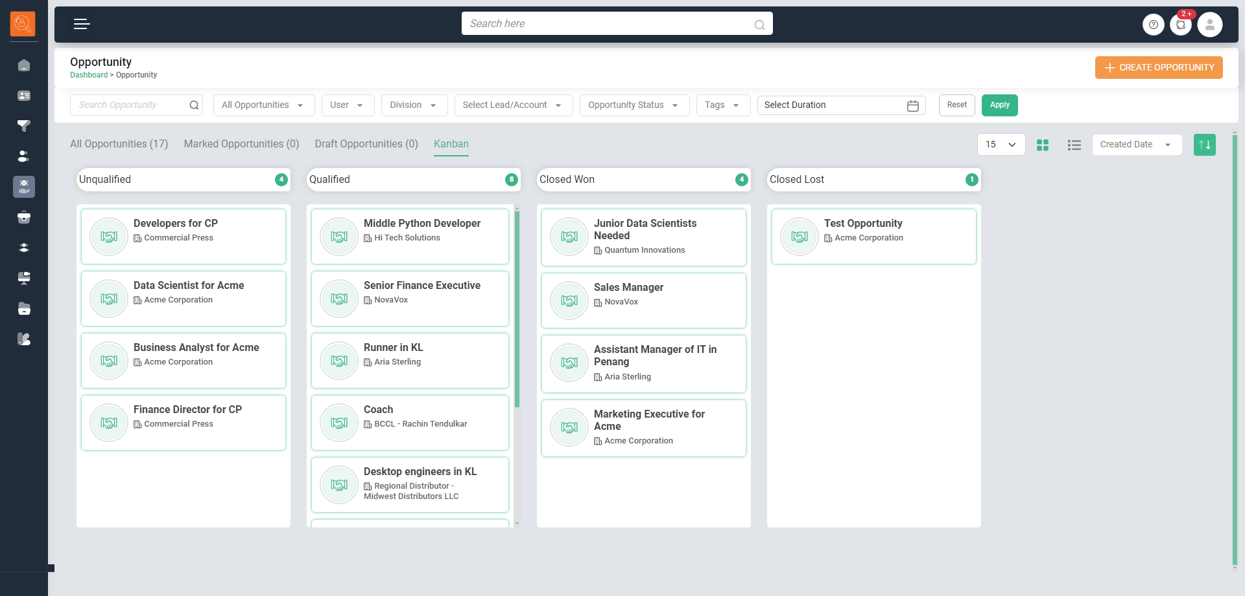
4 Opportunity Sub Tabs - These are quick view options to view Accounts as "Marked Opportunities", "Draft Oppertunities" and "Kanban View" which helps to see opportunities as per their Status.
-
5 View & Sort Options - For ease of viewing such as number of Opportunities to be displayed per page, whether in list or card form. One can also sort Opportunities basis "Name", "Created Date", "Last Modified" and "Location".
-
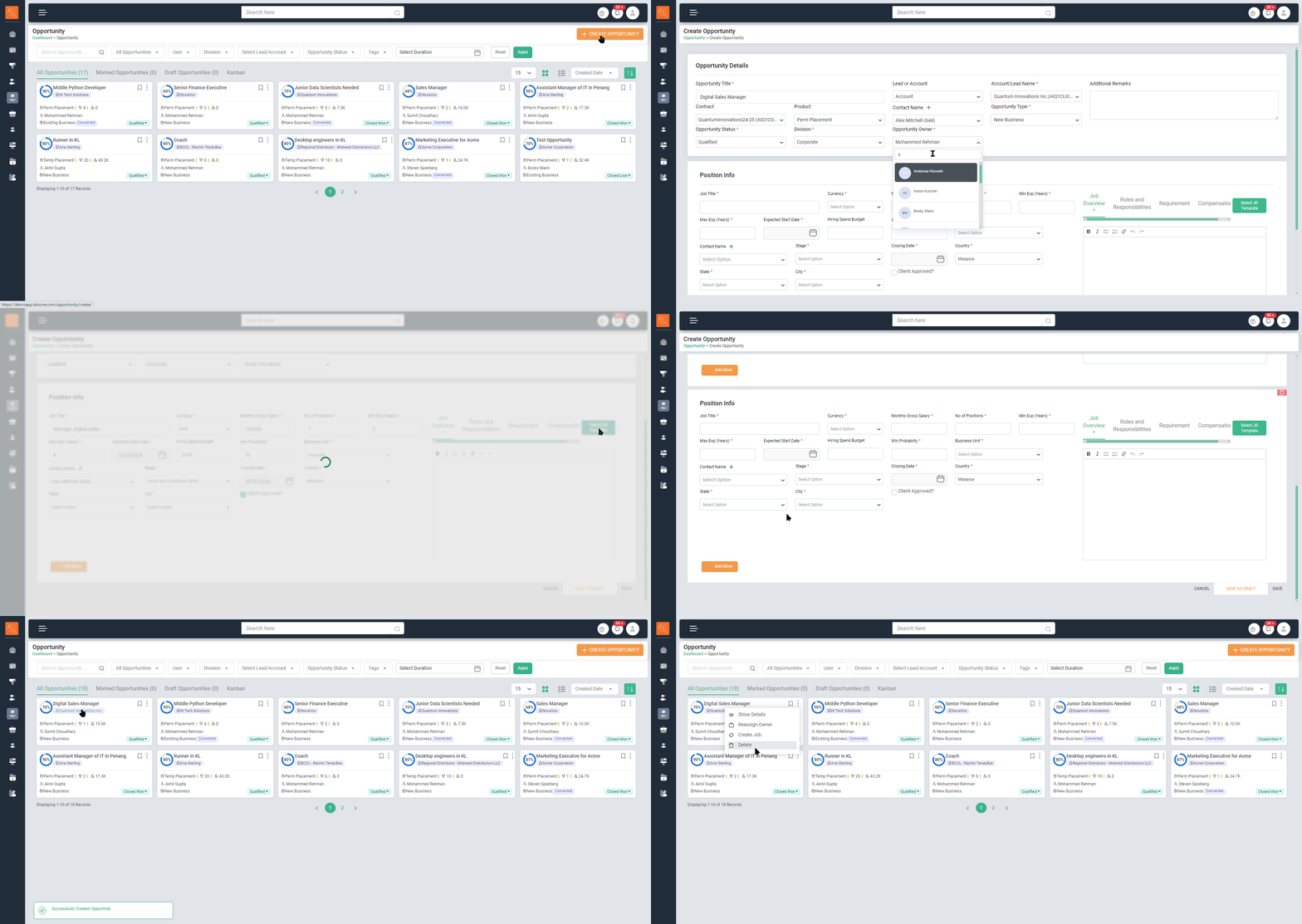
1 Click on "Create Opportunity" a new window will open.
-
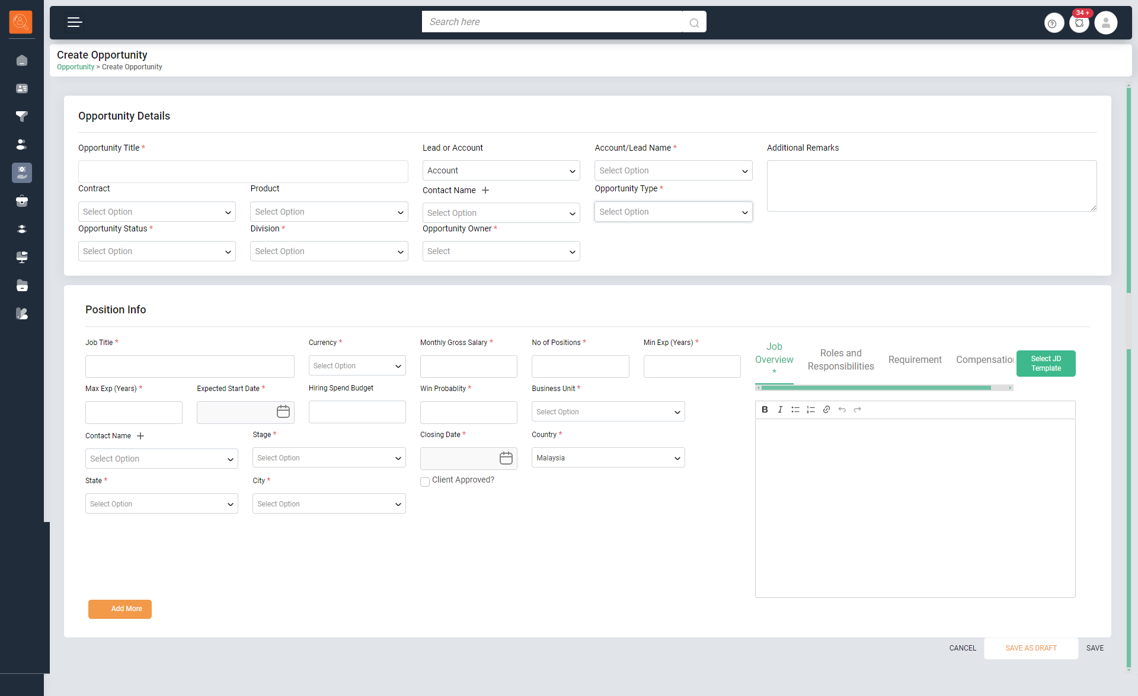
2 Fill details in "Create Opportunity Section" such as "Opportunity Title", "Lead or Account" reflecting whether opportunity is associated with a Lead or a Contact, "Lead/Account Name" , any "Additional Remarks", "Contract" select if it is an opportunity for a Account else leave blank, "Product" select if it is an opportunity for a Account else leave blank, "Contact Name", "Opportunity Type" whether is new or existing business, "Opportunity Status", "Division" and "Opportunity Owner".
-
3 Add details in "Position info" section and add job Description. Click Save.
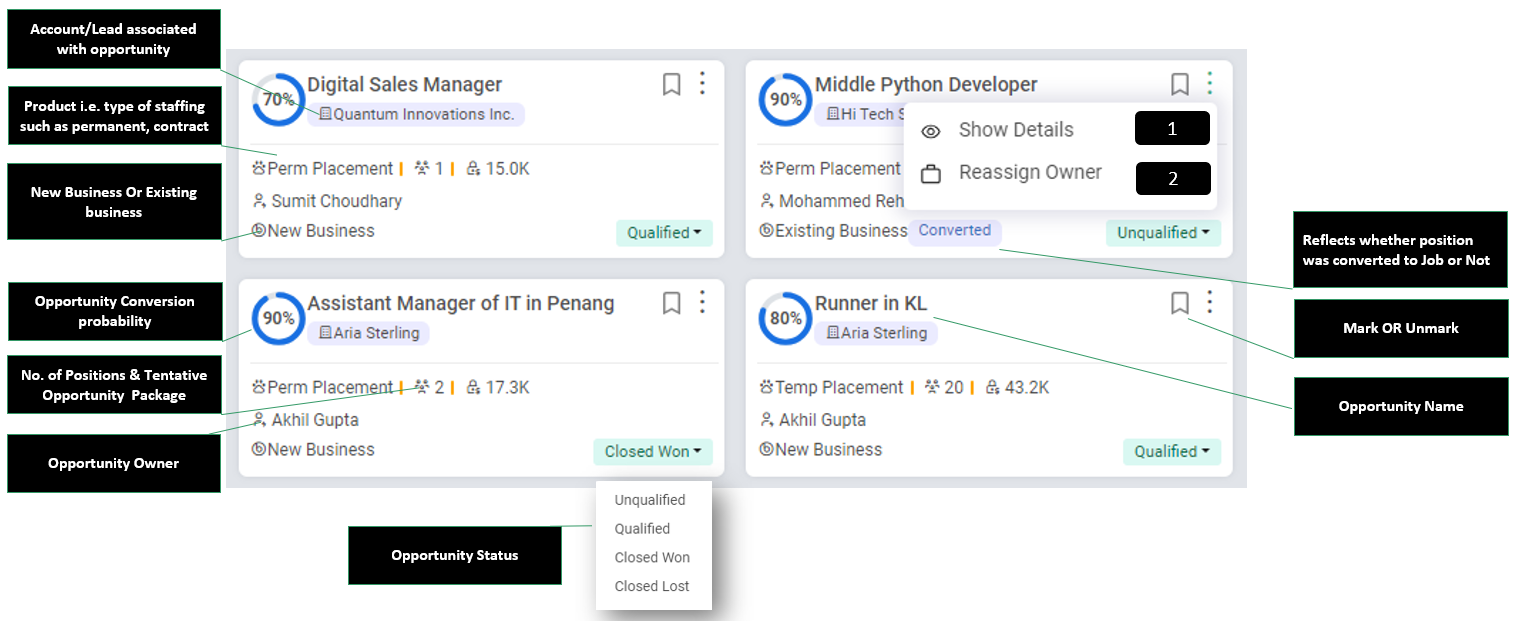
-
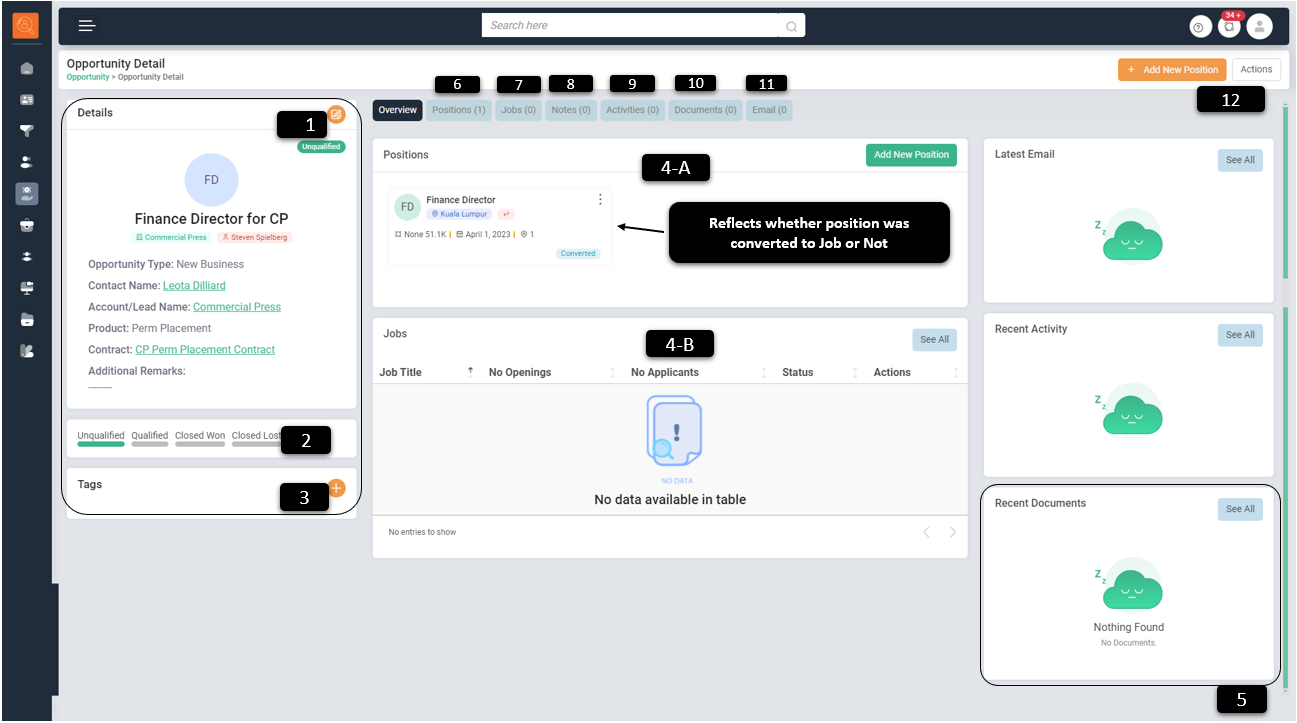
1 "Edit Details", if required after creating Opportunity
-
2 "Change Lead Status" from Unqualified to Qualified or as Opportunity Won or Opportunity Lost
-
3 Add "Tags" to search as per any particular key word you want to associate with the Opportunity
-
4 "Overview" tab gives all information at one glance pertaining to the Opportunity
- "Positions" shows relevant details about position attached with the opportunity. In case client adds more positions with different role to opportunity click on ' Add New Position" button.
- "Jobs" section reflects all positions under an opportunity converted in to a "Job".
-
5 "Recent Activities" bar let's you be updated with all recent activities e.g. Emails exchanged, Activities etc.
-
6 "Positions" tab contains details about all relevant positions attached with this opportunity such as "Stage" of opportunity which can be changed to "New" OR "Proposal" about commercials given to client OR "Negotiation" is happening OR "Final Terms & Conditions" are finalized OR "Won" means position search is agreed upon and hiring process can be started. Note - Make sure to check "Client Approved " option in position info before converting it to a Job.
-
7 "Jobs" section reflects all positions under an opportunity converted in to a "Job". One can take actions pertaining to the Job from this tab, as per role access, such as create interview, Assign Candidate, Publish on Job Site etc.
-
8 Add "Notes" about Opportunity such as any particular requirement they have for this opportunity.
-
9 "Create New Activity" use this feature to create task such as "Call" , "Meeting" etc. and directly assign from TALXrecruit this activity to your colleague or team member.
-
10 "Documents" use add documents related to concerned Oppportunity or view the ones already added in the system.
-
11 Interact via "Email" with contact directly from the TALXrecruit, no need to open multiple applications.
-
12 Use "Actions" button to change status of opportunity or reassign owner, if required.
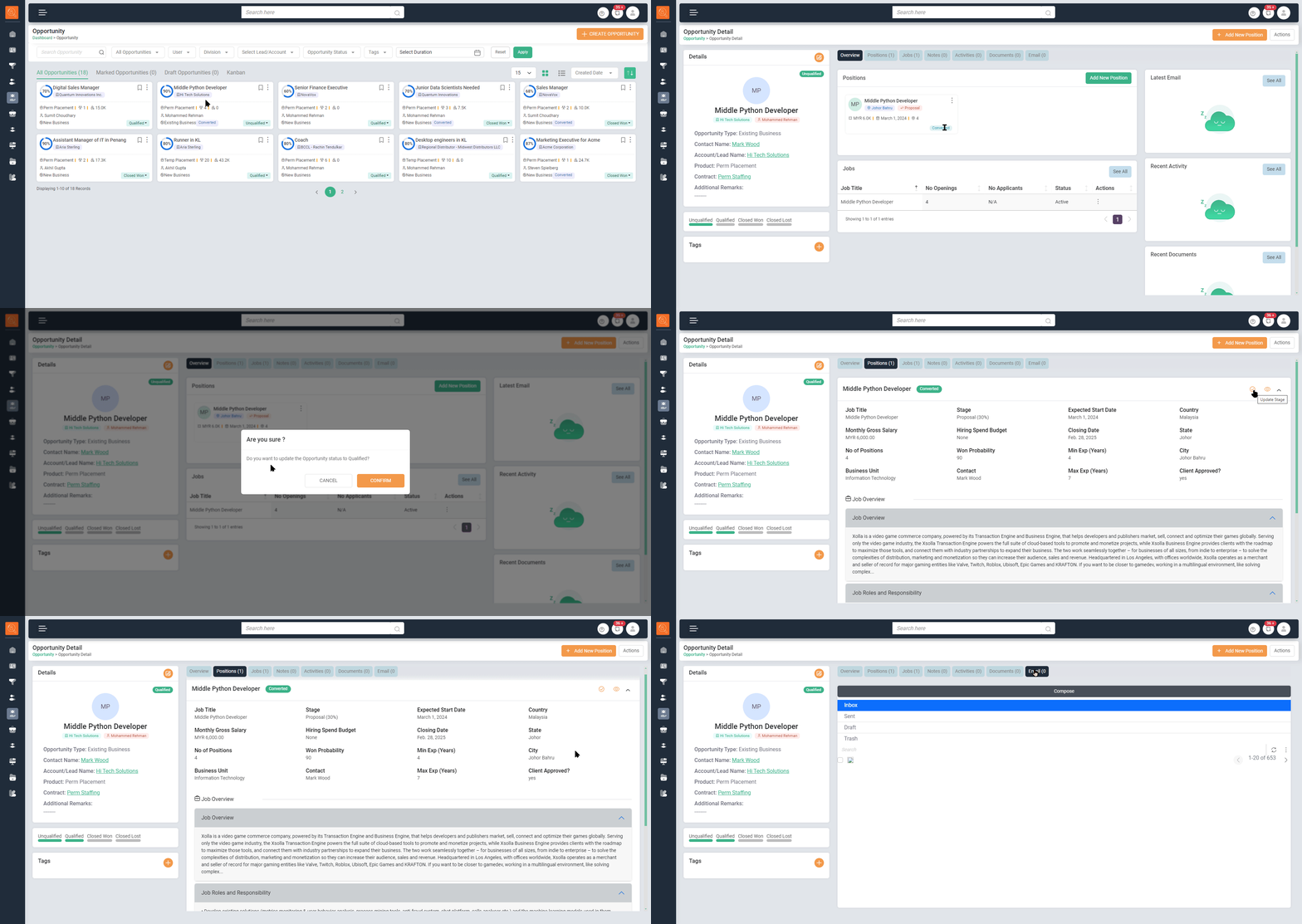
How to create a Job? Convert Opportunity Positions in to Job *Only for Approved Accounts
-
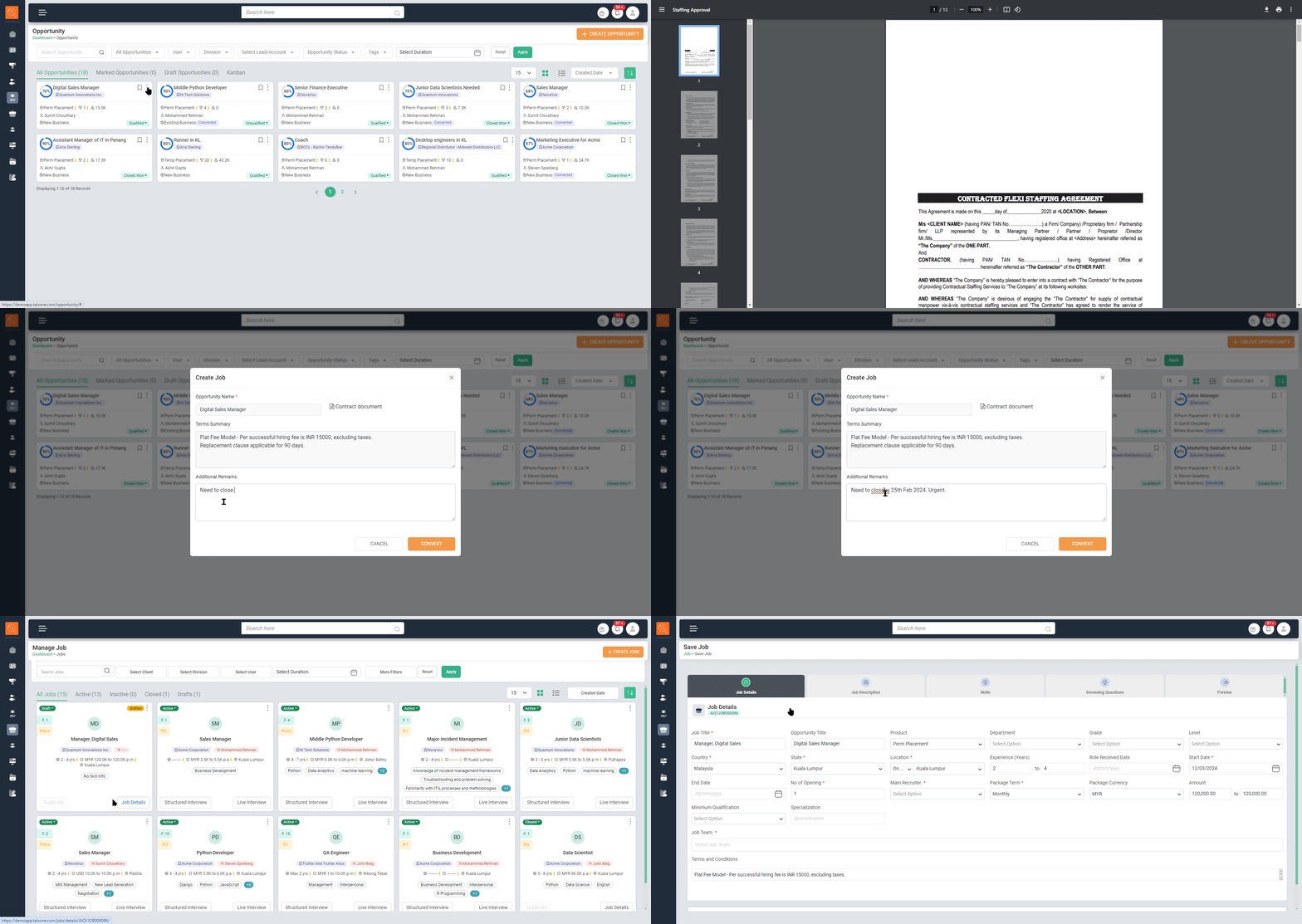
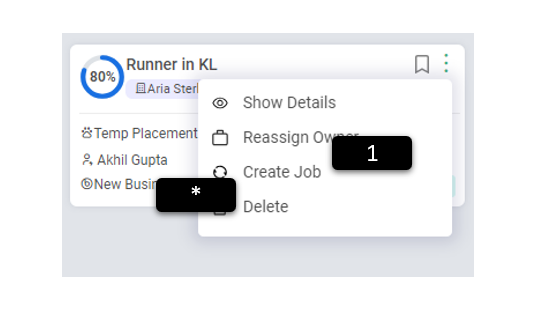
1 Click on ellipsis of opportunity cards yet to be convered. Click on "Create Job"
-
2 "Create Job" window will open reflecting "Opportunity name" ," Contract Document" and "Terms Summary".
-
3 Click on "Convert" and this opportunity will reflect in Jobs as a draft.
-
4 Go to "Job" tabs click on draft job corresponding to opportunity and proceed with further steps to creat the job, refer Job section for detailed process.
-
* Click on ellipsis of opportunity cards yet to be convered. Click on "Delete" Opportunity